How a clear design brief improves event operations
Providing a structured design brief to your designer or printer ensures the final wristband supports smooth access control and guest management. Event Wristband Info guides planners to treat the design process as an operational requirement to prevent practical failures such as unreadable text, unscannable codes, or guest confusion at the entrance. This approach empowers your team to communicate exact needs to suppliers confidently. A precise brief gives staff a consistent checking process and helps keep queues moving efficiently.
Explaining your event flow and wristband type
Documenting your guest journey and chosen wristband material is the first step in helping the designer understand the context of the artwork. Different event flows dictate the type of closure and material you need, which directly impacts how the supplier approaches the printing process. Providing this background ensures the artwork suits the physical limitations of the wristband and the expected event duration.
Defining access zones and duration
Your brief should map the exact points where guests receive their wristbands and where staff inspect them. A single-day school event using simple paper admission bands has very different design constraints compared to a multi-day festival requiring durable fabric. Explaining the environment and access zones helps the designer position critical information where it will survive wear and remain visible.
Specifying the wristband material
You must clearly identify whether you are printing on Tyvek, vinyl, silicone, or fabric. Each physical wristband material absorbs ink differently and has distinct limitations for fine details or small text. Telling the supplier exactly what material they are working with allows them to adjust line weights and select suitable printing methods for a clear result.
Explaining staff check procedures
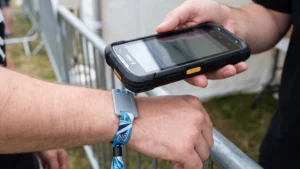
Outlining how your security staff will visually inspect or scan the wristbands guides the designer in structuring the layout. If your team relies on quickly identifying age verification at a dark venue, the designer knows to prioritise high-contrast elements. Sharing these operational details prevents the creation of a beautiful design that fails to function during a busy entrance rush.
Specifying dimensions and safe print areas
When setting up the artwork file, you must specify the exact dimensions of the chosen event wristband to ensure all elements fit correctly. Standard Tyvek wristbands typically measure ten inches long and three-quarters of an inch or one inch wide, while adult silicone wristbands measure eight inches in circumference. Because wristbands curve around the arm, text near the edges can suffer from horizontal compression and glare. Using sans-serif typefaces with a medium to bold weight helps maintain legibility on these curved surfaces.
You must also define a strict safe print area to prevent critical information from being trimmed off during manufacturing. This inner boundary zone sits a few millimetres inward from the physical edge and is often marked by dashed lines in manufacturer templates. While background colours or patterns can extend to the bleed line, essential text, barcodes, and logos must remain strictly inside the safe zone. Keeping vital details within this central visible area ensures that staff can instantly see necessary access permissions on a worn wristband.
Structuring required text and visual identifiers
A successful wristband design balances essential access permissions with decorative elements without cluttering the small printable area. Prioritising clear text and symbols helps staff process guests efficiently at the gate. Colour coding should never be the sole method for communicating critical information, so you must instruct your designer to integrate readable identifiers.
Prioritizing critical access information
The most important details, such as admission days, age verification, or specific access zones, must dominate the layout. Your brief should instruct the designer to make these elements the largest and most readable parts of the wristband. Relegating less important information to the background ensures that security staff do not have to search for the right permission during a busy rush.
Adding symbols for quick recognition
Incorporating bold, universally understood symbols gives staff a secondary way to verify access quickly. A large star, a bold circle, or a specific geometric shape can communicate a VIP status or an over-eighteen permission instantly. These visual identifiers support the colour coding and text, reducing the chance of a misread permission in low light or chaotic environments.
Positioning sponsor logos without clutter
Sponsor logos often need to appear on the wristband, but they must not interfere with the primary access information. You should direct the designer to place these logos away from the main safe print area used for staff checks. Keeping promotional artwork secondary ensures that the wristband remains a functional operational tool first and a marketing space second.
Establishing processes for numbering and barcodes
Incorporating variable data requires precise instructions to bridge the gap between your access control software and the physical print layout. Digital production presses use Variable Data Printing workflows to inject unique information from structured databases onto a static background design. Providing a clear process for numbering and barcodes ensures the final product scans reliably at the entrance.
- Organising the database structure: Prepare your sequential numbers or barcode data in a structured format like a CSV or Excel file. The database must match the dynamic placeholders in the design file to prevent data syntax errors during high-speed printing. Managing this data properly at the source guarantees a smooth production run.
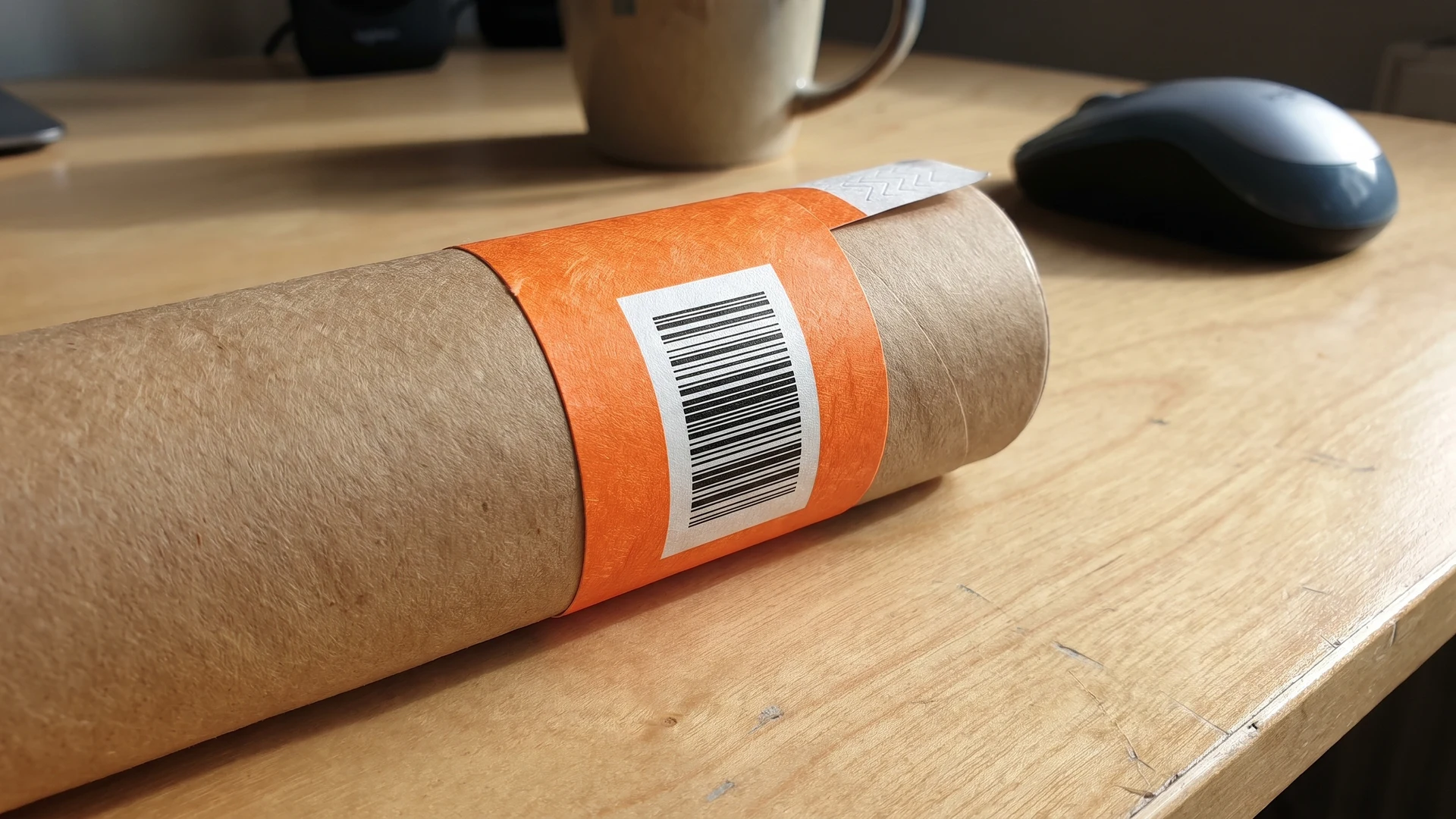
- Sizing the barcodes correctly: Instruct the printer to keep printed Quick Response (QR) codes to roughly nineteen millimetres square. If the code is too large, the edges will wrap around the curve of the wrist and fall out of a scanner focus plane. Keeping the code within this recommended size ensures rapid and reliable scanning at the gate.
- Managing contrast for scanners: Specify black ink for barcodes on red, pink, or orange wristbands, as these background colours reflect the red light of a scanner effectively. Never use a red barcode on a white wristband, because the red ink will be invisible to a standard scanner. Choosing the correct colour combinations prevents costly operational failures on the day.
- Protecting the quiet zone: Ensure the design leaves a blank, solid-coloured boundary around every barcode or QR code. You must not allow patterns, text, or background textures to bleed into this essential scanning margin. Providing this clean space gives the scanner the contrast it needs to read the data instantly.
Selecting reliable colour references
Specifying colours correctly prevents unexpected shifts between the digital design proof and the physical production run. Digital screens use additive light to create vibrant colours, which often look much brighter than physical ink printed on an event wristband. To achieve reliable results, you should use the Pantone Matching System to provide exact spot-colour references to your supplier. Providing standard Pantone codes ensures that the physical wristbands match your event branding accurately across different vendors.
You must also account for how the specific wristband material affects colour reproduction. A design printed on polyester fabric using digital dye-sublimation will look different than the same design printed on the semi-porous surface of a Tyvek wristband. Silicone wristbands often require heavy-pigment inks or debossed colour channels because their non-porous surface repels standard inks. Understanding these material behaviours helps you avoid colour shifts that could confuse staff or compromise your visual identity.
Defining security features in the artwork
Adding physical security features to your artwork helps staff verify legitimate credentials quickly at the gates. You can instruct your designer to include custom background patterns or micro-printing, which embed microscopic text and wavy lines that standard commercial copiers cannot replicate without blurring. Ultraviolet ink provides another hidden layer that remains invisible under daylight but glows brightly when checked with a portable black light. These visual security elements aid inspection, but they do not automatically prevent unauthorised access unless your team follows strict checking procedures.
For higher security or VIP access, you might specify holographic foils in your design brief. The manufacturing process uses hot foil stamping to fuse a micro-embossed film directly onto the wristband, creating a three-dimensional colour spectrum that is extremely difficult to counterfeit. Alongside the printed artwork, you must choose an appropriate tamper-evident closure that provides physical proof if a guest attempts to remove or transfer the wristband. Combining these visual features with a secure closure gives your staff the best tools to manage access effectively.
Reviewing the final proof before production
Before authorising the print run, your team must carefully check the supplier digital artwork proof against the original design brief. This methodical review is your last opportunity to catch spelling, layout, or dimension errors before the order goes into production. Taking final responsibility for this step empowers your event team and guarantees operational readiness.
- Verifying the safe print area: Check that all critical access information, text, and barcodes sit well inside the designated safe zone. Confirm that no essential details will be lost under the closure or trimmed off during manufacturing. Verifying these dimensions prevents staff from struggling to read chopped text during a busy entrance rush.
- Checking spelling and dates: Read every word on the proof carefully to catch typographical errors in event names, sponsor details, or admission dates. A single incorrect digit can cause significant confusion for both guests and staff on the day of the event. Fixing these mistakes before printing saves your team from ordering expensive replacement stock.
- Confirming colour references: Cross-reference the colours shown on the digital proof with your original Pantone codes. Keep in mind that your computer screen will display the colours differently than the physical print, so trust the written codes over the digital rendering. Approving the correct codes guarantees that the final product aligns exactly with your event branding.
- Testing visual hierarchy: Look at the proof briefly to see which elements stand out first to the naked eye. Ensure that the age verification or access zone identifiers are immediately obvious, confirming that the wristband will function effectively during rapid visual checks. A clear hierarchy helps your security team process guests confidently without unnecessary delays.
What wristband dimensions and safe print areas should I include in the design brief?
Provide the exact event wristband type and template. For Tyvek, note 10 inch length and 0.75 or 1 inch width. For silicone, give adult and youth circumferences. Include the manufacturer’s safe print area and keep all critical text, logos, and codes inside it, with backgrounds extended to bleed.
How should I handle the closure overlap in the artwork?
Mark the closure overlap on the template as a no-content zone and keep barcodes, numbers, and key text well clear. Place critical content on the opposite, always visible section. Ask your supplier for the exact overlap length and confirm with a printed mock fit.
What do I need to specify for sequential numbering and barcodes?
State the numbering start, end, and format, then provide a clean comma-separated values (CSV) file with columns for Serial_Number and Barcode_Data. Map each field to its artwork position. Keep a clear quiet zone around barcodes, about 0.25 inches, and align numbers with your access control records for reconciliation.
What size and contrast should I brief for QR codes on different wristband materials?
Use a Quick Response (QR) code around 0.75 inch square with high contrast, ideally black on white. On fabric or silicone, place the code on a flat, solid white tag to avoid distortion. Set error correction to Level H and avoid glossy finishes or tight curves that cause glare.
How do I brief color so printed wristbands match our brand and security needs?
Specify Pantone Matching System spot colors with the suffix, for example C for coated or U for uncoated. Red, Green, and Blue (RGB) screens differ from Cyan, Magenta, Yellow, and Key (Black) (CMYK) ink. For security, define spot channels for Ultraviolet (UV) inks or holographic areas and supply vector artwork.